

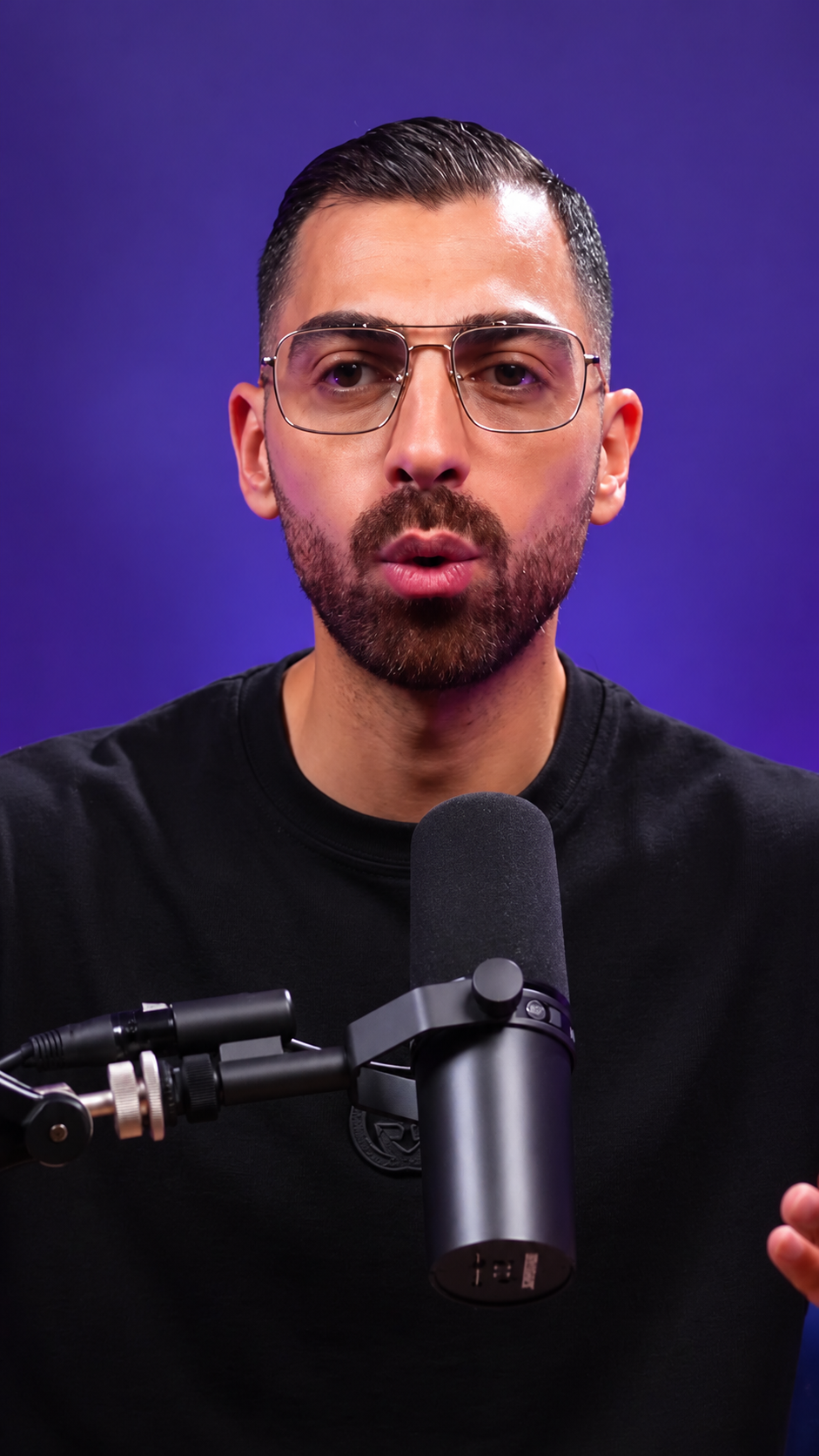
Caption-only styling works when the footage already has a strong focal point and does not need an extra headline or gameplay layer. The craft is in accuracy, timing, size, and position: captions should support the speaker without becoming the loudest object in every frame.
 And no longer
work.
Choose caption-only styling when the speaker is enough
Interviews, podcasts, explainers, and direct-to-camera clips often already have a clear visual subject. Removing extra panels and decorative titles lets facial expression, gesture, and voice remain central.
Place captions around the face and microphone
Keep captions horizontally centered, then adjust their vertical position to preserve the speaker’s mouth, eyes, gestures, and any visible product. Check platform interface areas near the bottom and sides of the screen.
Set size for a real phone screen
Caption text that looks refined on a desktop can become too small on a phone. Increase the size until it is comfortably readable, then confirm that common two-line phrases still fit without touching the edges.
Highlight only the words that help
A restrained color highlight can help a key word land. Highlighting too many words flattens the hierarchy and makes the viewer chase animation instead of listening to the idea.
Treat transcription as publishable copy
Proofread names, numbers, acronyms, and specialist terms against the audio. Adjust awkward line breaks and make sure each caption appears long enough to be read naturally.
Create a caption-only Short
- 1
Choose a face-led clip
Use a segment where the speaker and spoken idea already provide a clear focal point.
- 2
Generate and proofread captions
Compare the transcript with the audio and correct names, numbers, and technical language.
- 3
Adjust position and size
Keep captions centered horizontally, then use vertical position and size controls to protect the subject.
- 4
Review with and without sound
Watch the complete clip at phone size to verify pace, meaning, and readability.
Key takeaways
- Caption-only styling keeps a strong speaker-led frame uncluttered.
- Vertical placement should protect the face, gesture, and platform controls.
- Caption size needs to be tested on a phone.
- Accurate transcription matters more than decorative animation.