

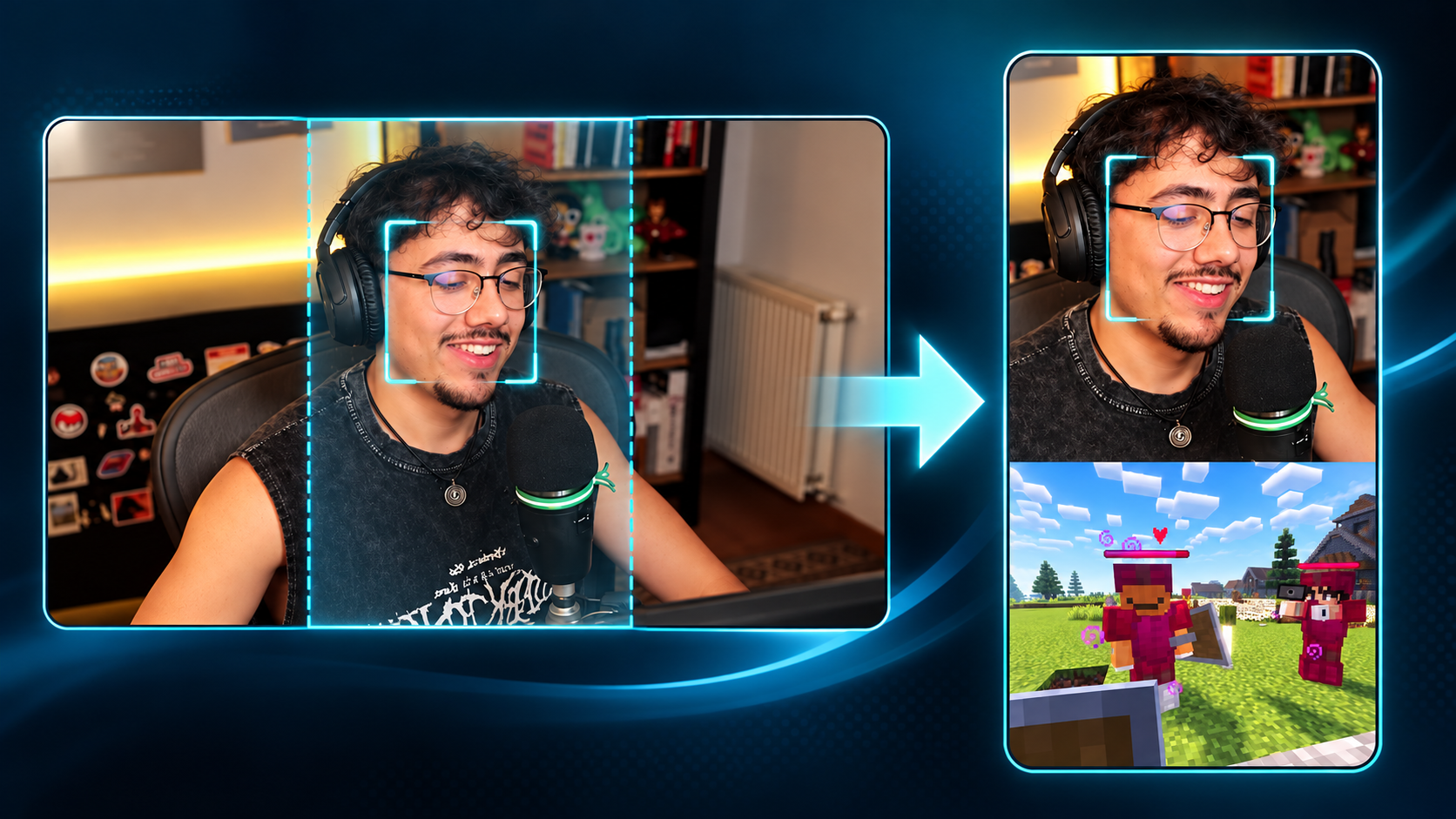
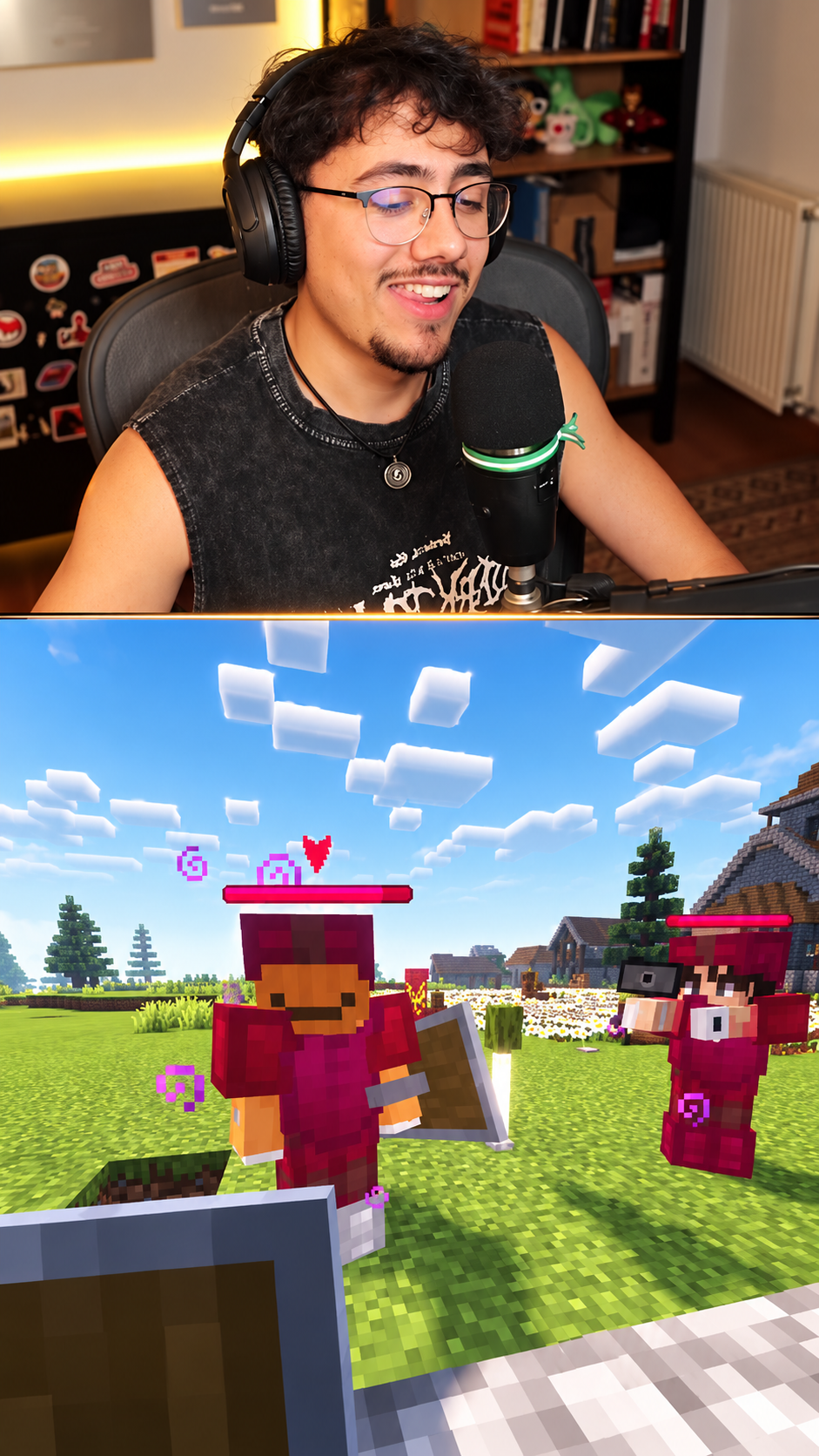
A 40:60 gameplay split keeps two visual layers in one 9:16 frame: the source clip in the upper 40% and gameplay in the lower 60%. ShortClipr also offers a separate face-tracked gameplay style when a moving speaker needs a tighter crop. Choose the style that suits your footage, then review the story, timing, and caption placement.
 This gameplay keeps
people watching.
Why use a 40:60 gameplay layout?
A split layout gives the speaker enough room for expressions while leaving most of the screen to motion-rich gameplay. The ratio is a starting point, not a guarantee of performance: the spoken idea still needs a clear opening, useful middle, and complete ending.
Start with clean, usable gameplay
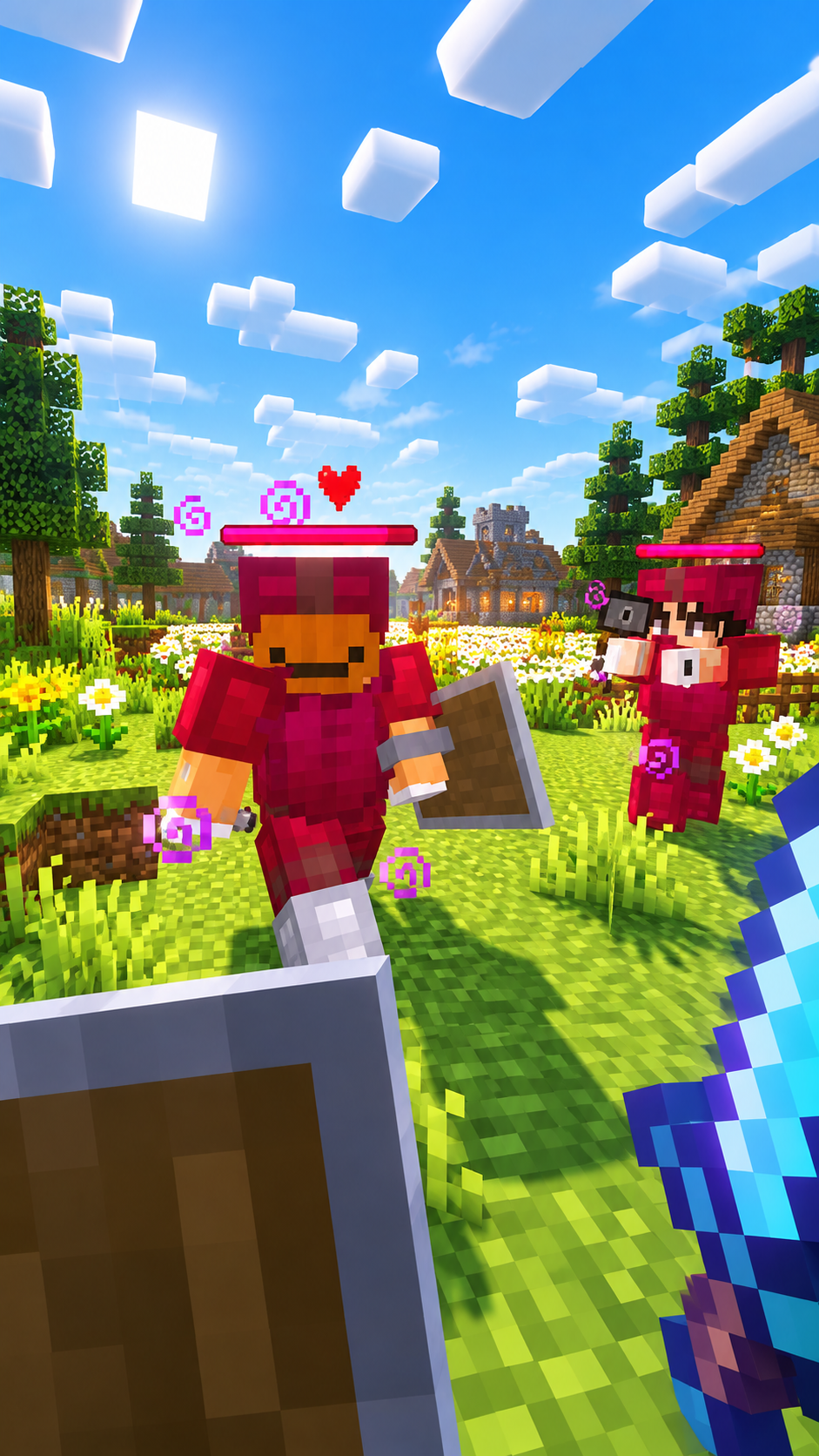
Choose a gameplay segment without menus, loading screens, or distracting overlays. Look for steady action that supports the pace of the spoken clip without competing with its meaning. Make sure you have permission to use both the gameplay and the source video.
Choose the split or face-tracked style
The 40:60 style fits the source video into the upper section and uses a larger lower gameplay section. If the speaker moves across a wide source, choose the separate face-tracked gameplay style for a tighter crop that follows the detected face. Review that crop whenever the speaker moves quickly, leans out of frame, or another face appears.
Build the 40:60 split and add captions
Place the face-led source in the upper section and the gameplay in the larger lower section. Keep captions horizontally centered and use the vertical-position and size controls to avoid the face, gameplay HUD, or important action. The default position is a good starting point, but every clip deserves a full playback review.
Review motion, timing, and caption accuracy
Watch the finished Short at phone size with sound and once while muted. Check the face crop throughout the clip, verify names and figures in the transcript, and make sure line breaks do not cover the focal point in either half of the layout.
Make a gameplay Short in ShortClipr
- 1
Choose the spoken clip
Select one complete moment with enough context to stand on its own.
- 2
Select a gameplay background
Pick clean footage with continuous action and confirm you have the right to use it.
- 3
Apply the gameplay split style
Use the 40:60 layout to place the face-led source above the gameplay.
- 4
Check the source framing
Review the upper frame; if you chose the face-tracked style, check that it follows the active speaker.
- 5
Position and proofread captions
Adjust caption height and size, correct the transcript, then watch the complete portrait export.
Key takeaways
- The 40:60 ratio balances the source clip with a larger gameplay area.
- Face tracking is a separate gameplay style; movement still needs a human review.
- Use caption position and size controls to protect faces, HUD elements, and important action.
- Only publish source video and gameplay you have permission to use.